inkit · System integration
Connect your orders to the printing site.
Start with where orders come from and how the site connects. Then agree how software and equipment work together.
Start with the order source
Where do your orders come from?
Remote orders (API)
For stores, mini apps and business systems. Agree how orders are sent and received before connecting printing.
The printing site needs a suitable network and order-receiving software. Test recovery from disconnections and failed prints to avoid duplicates.
Explore this connection →From order to finished item
How does an order become a finished item?
- 01
Prepare the order and artwork
Confirm the item, artwork size and placement before creating a job.
- 02
Send the order to the site
Your existing system sends the order and artwork to the printing site through the agreed connection.
- 03
Print using the device workflow
Staff operate machines that need manual loading. Automatic machines follow their confirmed setup.
- 04
Check status and the finished item
Job receipt is not print completion. Check device status, finished items and handling of failed tasks.
Agree on responsibilities
What do software, equipment and your team handle?
Software receives jobs
Confirm ordering, artwork tools and job submission with the software setup. Agree payment configuration separately.
Equipment prints
Results still depend on materials, fixtures and machine configuration. Test actual items first.
Assign on-site support
Assign loading or replenishment, pickup, cleaning and fault handling. Kiosks also need maintenance.
What should we check before connecting?
- Connection address and access (who may send orders)
- Order and artwork formats
- Check whether an order was received or finished
- Disconnections, timeouts and duplicate orders
Document the connection address, who can send orders, file formats and test steps, then check them with test orders.
Software works with equipment
Choose equipment by who operates it.
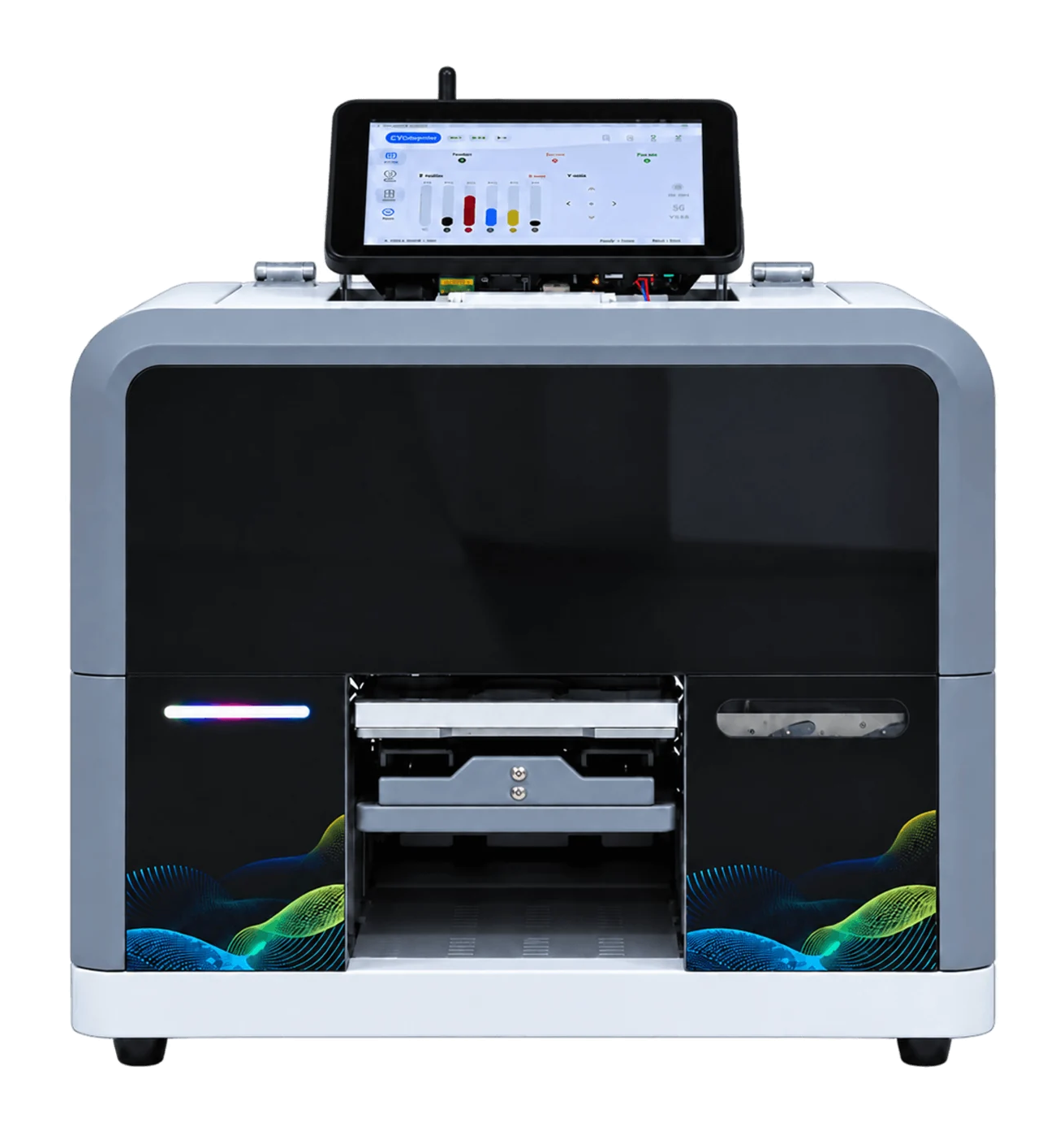
RF-ZP1B
Receive orders and handle artwork on the device. Staff load, print and unload.
View machine & workflow →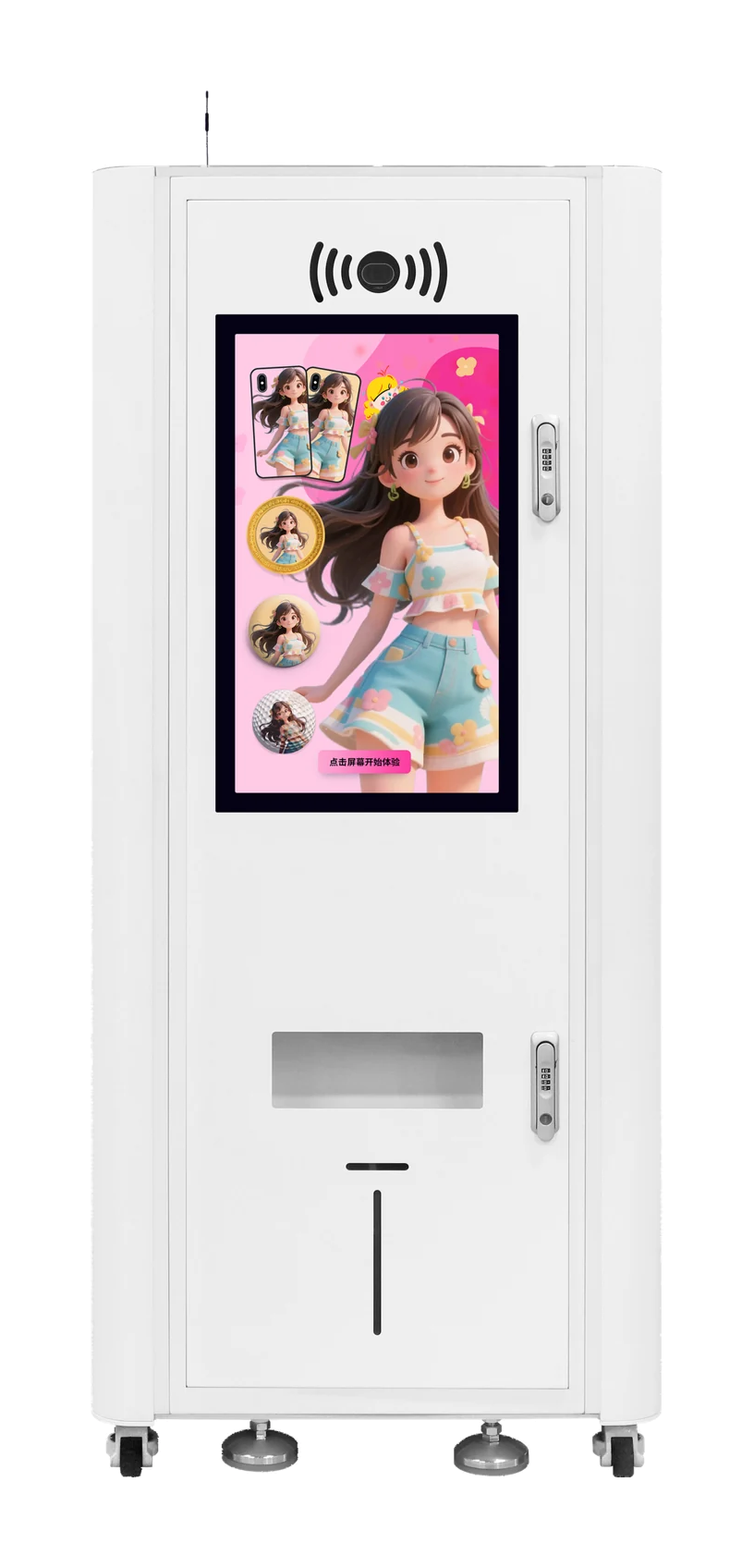
Refine AI kiosk
Pay after confirming the preview. The machine feeds, prints and dispenses automatically.
View machine & workflow →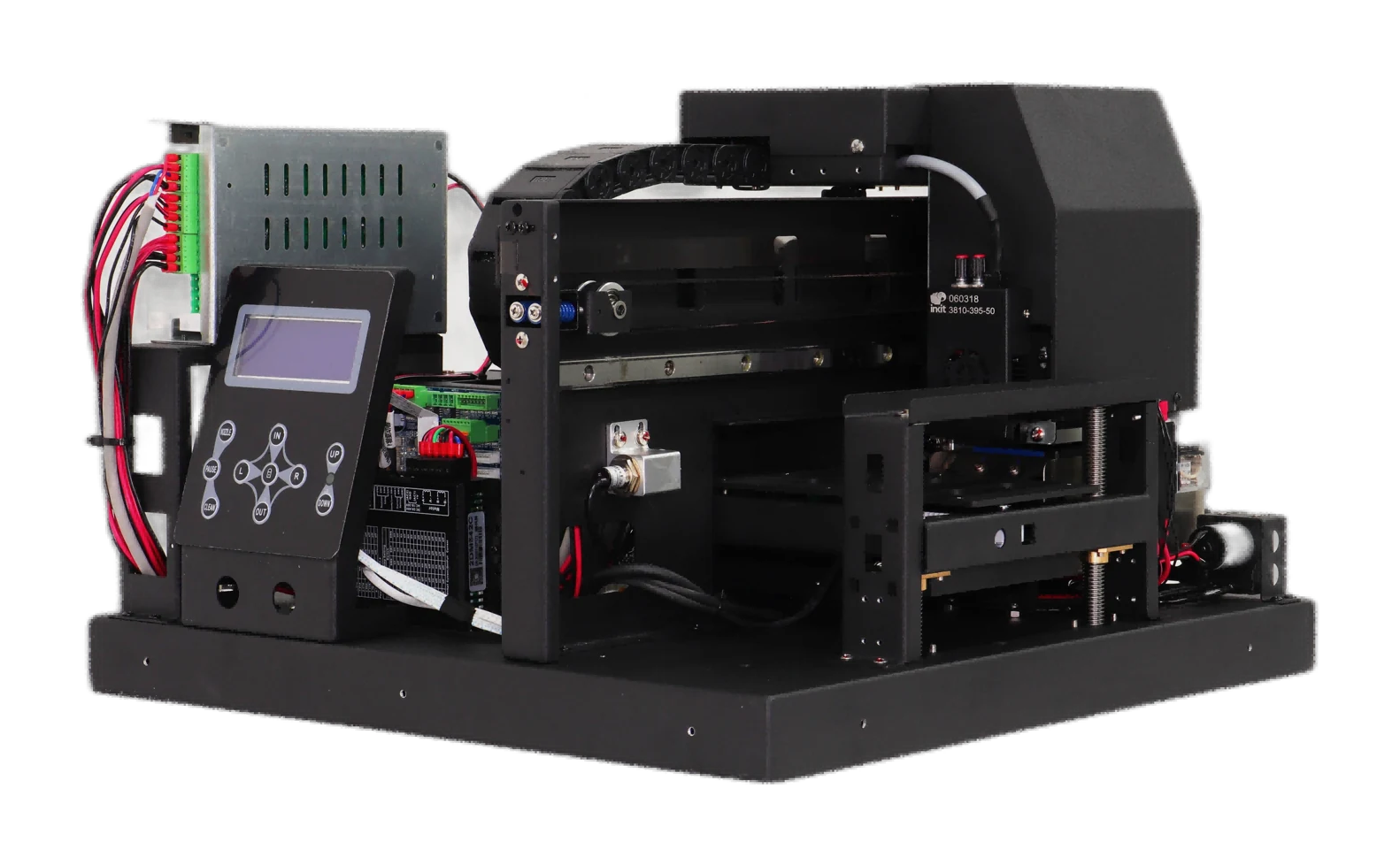
RF-ZP1P
Printing module with order-receiving software, without a computer. The project supplies the cabinet, computer and ordering setup; the customer defines the printing workflow.
View machine & workflow →Test before handover
Run one real order through the whole workflow.
Start with a small test. Check artwork, orders, equipment and on-site operation before regular use.
A normal order
Check that artwork, submission, printing and inspection match the same order.
A failed order
Test disconnections, resubmissions and print failures. Agree how retries avoid duplicate production.
Handover and support
Agree who updates software and maintains equipment, with instructions for operation and issues.
Before contacting us
Start with these details.
- Order source and existing system
- Device model, item materials and dimensions
- On-site network, computer and space
- Payment needs and who operates and maintains it