inkit · Ordering & printing software
Help customers order.
Help your team receive and print.
Connect artwork preview, job reception and printing. Match software and equipment to your items and operating workflow.
Start with how you operate
Choose the workflow, then the software.
Staff production
Customers submit artwork. Staff receive jobs, load, print and unload on staff-operated equipment.
Customer self-service
Customers choose artwork, preview and pay. Automatic feeding and dispensing require supporting hardware.
Connect an existing system
With an existing store, mini app or controller, first assess how orders connect to equipment.
Explore integration →From ordering to pickup
Preview before confirming production.
Staff production workflow example. Confirm ordering and payment functions for the device software.
- 01
Choose the item and artwork
Use tested item dimensions to design artwork or choose a template.
- 02
Preview, then order
Check artwork and placement. When payment is required, handle it after preview confirmation and before printing.
- 03
Staff load and print
Once the job is received, staff hold the item and confirm printing.
- 04
Check and collect
Staff check the result and hand it to the customer.
Software screens
Which software handles orders, printing and management?
Choose a name below to view an actual screen example. Screens and functions vary by version and configuration.
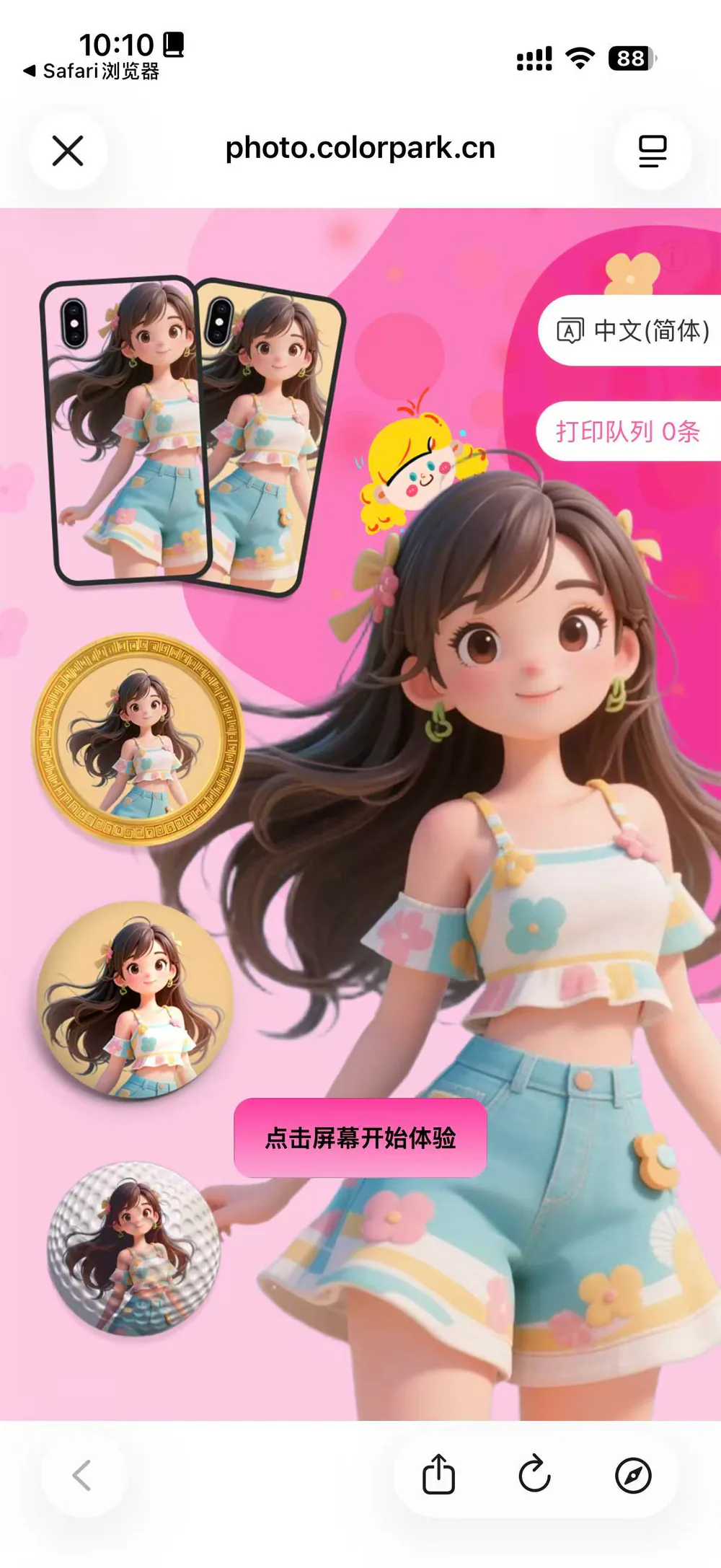
AI-H5 / APP
Customers choose a style and create artwork.
Choose an AI style, take or upload a photo, then generate and preview the artwork. Direct upload of an existing design is also available according to the software setup.
Confirm styles, items, payment and ordering sequence for the device and software.
Confirm the setup
Check software capabilities with the machine.
Computer and order-receiving software
Some machines need an external PC, some offer an optional computer, and ZP1B uses an embedded system. Confirm by model.
Item and print placement
Test the actual item size, material and holder, then set the artwork area, template and print position.
Payment and on-site maintenance
Configure payment per project. Assign replenishment, cleaning, fault handling and software support.
Assess your existing system
Start from where your orders come from.
For stores, mini apps, local networks or existing controllers, check interfaces and device models, then run a test order.
Internet orders
Connect remote orders →Local network
Connect over a local network →Existing controller
Connect existing control software →Before contacting us
Start with your items and workflow.
- Items, dimensions and artwork
- Order entry and payment needs
- Device model, on-site computer and network
- Staff production or self-service, and who maintains it